
You downloaded that gorgeous Lightroom presets pack. You applied it to your photo with high hopes. And then… it looked nothing like the preview. Maybe the colors went weird, or your subject's skin turned orange, or the whole image just felt off.
Here's the thing: it's probably not the preset's fault.
Lightroom presets are incredibly powerful tools that can transform your editing workflow and help you develop a consistent visual style. But they're not magic buttons. When used incorrectly, even the best presets in the world will deliver disappointing results.
The good news? Most preset problems stem from a handful of common mistakes that are surprisingly easy to fix. Let's walk through the seven biggest errors photographers make with Lightroom presets: and exactly how you can avoid them.
Mistake #1: Treating Presets as "One-Click Perfection"
This is the most widespread misconception about Lightroom presets, and it sets you up for frustration from the start.
Presets are not a magic wand that automatically transforms any image into a masterpiece. Every single photo you take has unique lighting conditions, color temperatures, exposure levels, and subject matter. A preset that looks stunning on a golden-hour beach portrait might look completely wrong on an indoor studio shot.
The fix: Think of presets as a starting point, not the final edit. Apply the preset, then expect to spend a few minutes tweaking the settings to match your specific image. Adjust the exposure slider, fine-tune the temperature, maybe pull back on the highlights. This customization step is what separates okay edits from truly professional results.
The photographers who get the most value from presets understand they're creative springboards: not autopilot buttons.
Mistake #2: Skipping Your Basic Edits
Here's a scenario that plays out constantly: someone imports a photo, immediately slaps on a preset, and wonders why it looks terrible. The problem? They skipped the foundational work.
If your original image has blown-out highlights, crushed shadows, or wonky white balance, a preset will amplify those problems rather than fix them. Presets are designed to add style and mood to properly exposed images: they're not correction tools.
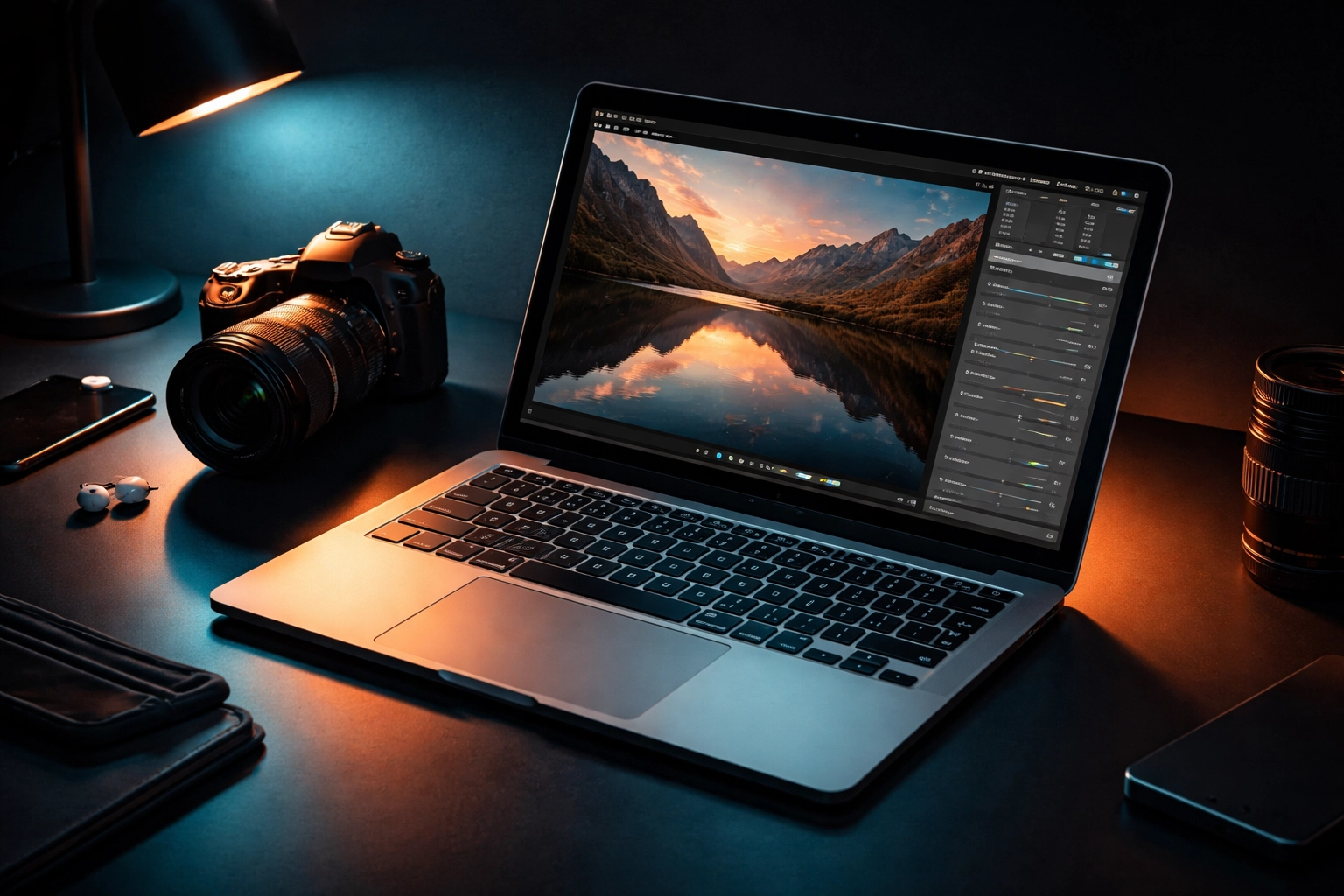
The fix: Before you touch any preset, handle your basics first:
- Exposure: Is the image too bright or too dark? Get it in the ballpark.
- White balance: Does the photo have an obvious color cast? Neutralize it.
- Highlights and shadows: Recover any lost detail in bright or dark areas.
Once your image has a solid foundation, presets can work their magic properly. This extra 30 seconds of prep work makes an enormous difference in your final results.
Mistake #3: Ignoring White Balance Completely
White balance might be the single most overlooked setting when working with Lightroom presets: and it causes more headaches than almost anything else.
Presets aren't designed to correct extreme color casts. If your photo was shot under tungsten lighting and has a heavy orange tint, or if it's from a shady area with a strong blue cast, even the highest-quality preset will look off. The preset's color grading will fight against your image's existing color foundation, creating muddy or unnatural results.
The fix: Always set your white balance manually before applying a preset. Use the eyedropper tool to click on something neutral in your image (like a white wall or gray surface), or adjust the temperature and tint sliders until the image looks natural to your eye.
Getting white balance right first means the preset's creative color adjustments will layer on top of accurate colors: exactly as the preset designer intended.
Mistake #4: Bringing Broken Exposure Into Post
Some things simply cannot be fixed in post-processing, no matter how good your preset is.
When you blow out your highlights in-camera: that bright white sky with zero detail, or the window that's pure white: that information is gone forever. No preset can recover it. Similarly, if you severely underexpose and crush your blacks, you'll introduce noise and lifeless shadow areas that presets will only make more obvious.
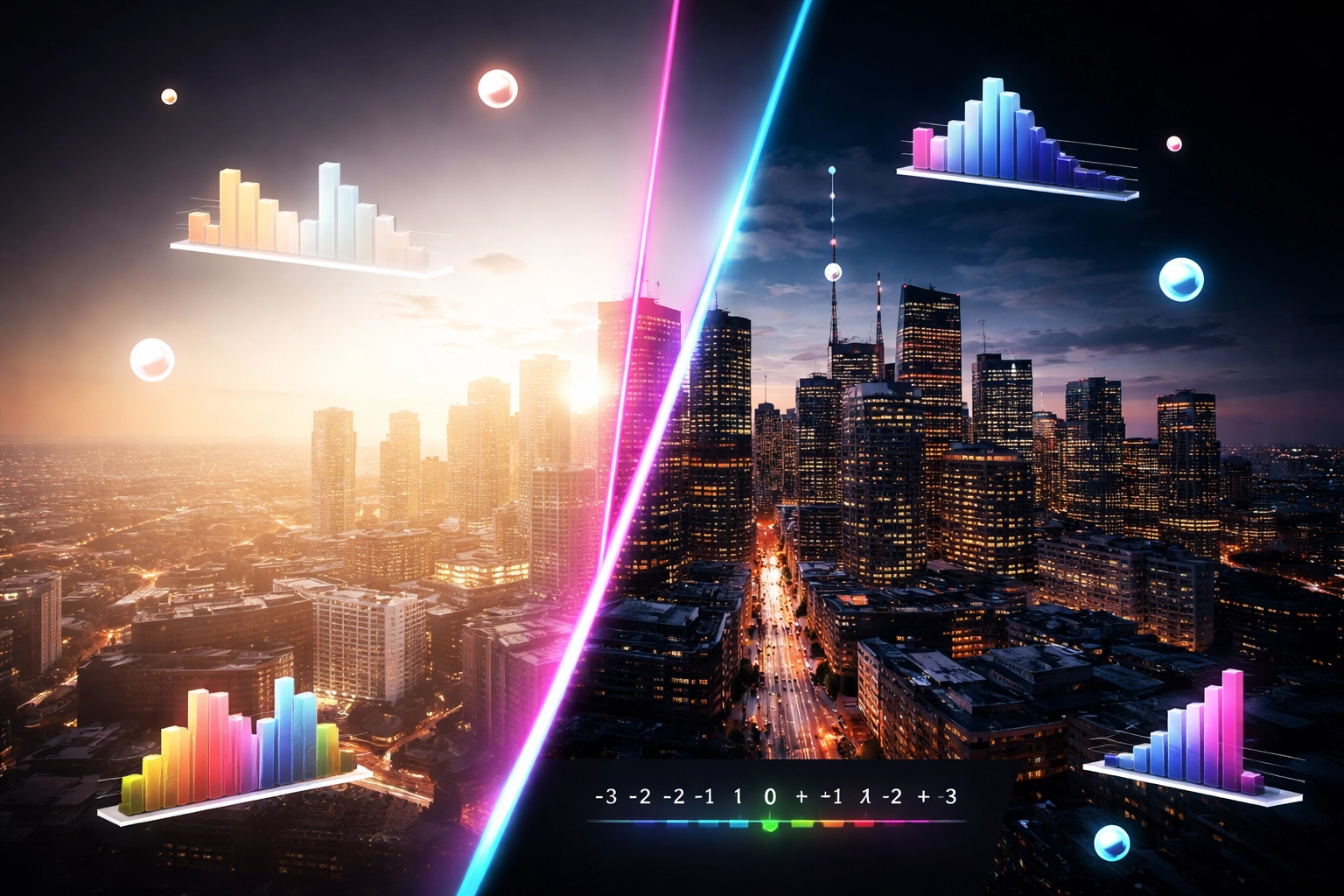
The fix: The best Lightroom edits start with the best possible capture. When shooting:
- Expose for your highlights to preserve detail in bright areas
- Keep shadow detail intact rather than letting dark areas go completely black
- Check your histogram to ensure you're not clipping either end
With properly exposed files, presets have the tonal range they need to create beautiful results. You can always darken highlights or lift shadows in post: but you can't invent detail that was never captured.
Mistake #5: Going Overboard with Saturation and Vibrance
We've all been there. The colors look nice, so you push saturation a bit higher. Then a bit more. Before you know it, your landscape looks like a neon fever dream and your portrait subjects have radioactive skin.
Many presets already include saturation and vibrance adjustments as part of their look. When you stack additional saturation on top, you quickly cross into oversaturated territory that screams "over-edited."
The fix: Take a measured approach to color intensity:
- Adjust in small increments: 5-10% changes rather than dramatic jumps
- Use HSL sliders for precision control over specific colors instead of global saturation
- Consider your subject matter: landscapes can handle more punch, but portraits demand restraint to keep skin tones natural
- Step away and come back with fresh eyes before finalizing
If colors feel vibrant on your calibrated monitor but look garish on your phone, you've probably pushed too far.
Mistake #6: Cranking Clarity and Texture Too High
Clarity and texture sliders are seductive. They add definition, make details pop, and can give images a crisp, professional feel. But they're also incredibly easy to overuse: especially on portraits.
High clarity on skin creates a harsh, almost crunchy texture that makes pores, wrinkles, and imperfections far more prominent. It's rarely flattering, and once that harshness is baked into your edit, presets cannot undo the damage.
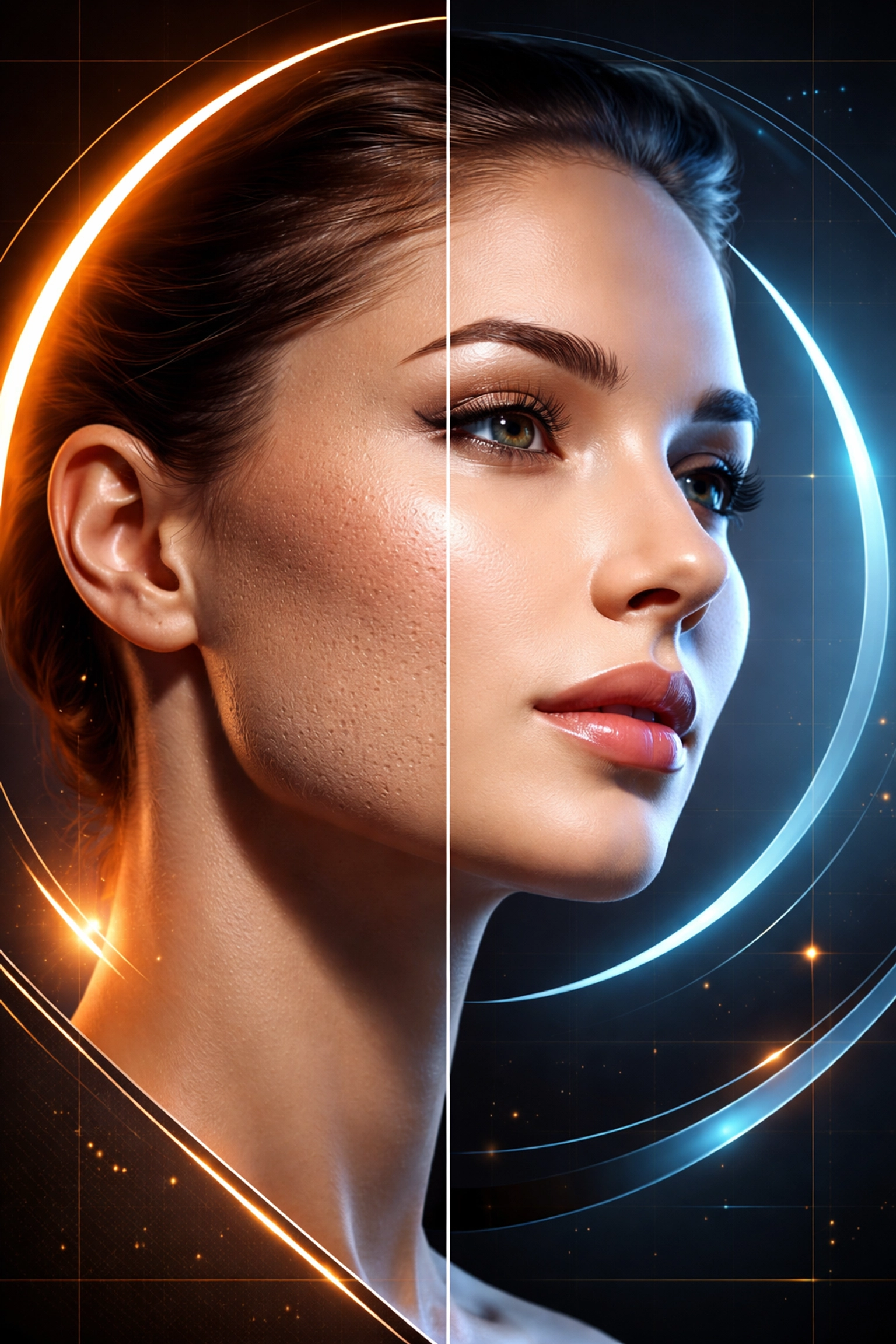
The fix: Use these powerful tools with restraint and precision:
- Keep clarity low or negative on skin to maintain a pleasing softness
- Use Lightroom's AI masking tools to apply clarity selectively: add it to eyes, hair, and clothing while protecting facial skin
- Reserve heavy clarity for textures like architecture, landscapes, or product photography where you want maximum detail
The goal is enhanced definition, not a HDR-nightmare aesthetic.
Mistake #7: Applying the Same Preset to Every Photo Without Adjustment
Picture this: you're editing a wedding and you've found a preset you love. So you apply it identically to the outdoor ceremony photos, the dimly lit reception shots, and the bright getting-ready portraits. The results? Wildly inconsistent.
Lighting conditions vary dramatically throughout any photo series. A preset tuned for soft window light will react completely differently when applied to harsh midday sun or warm tungsten bulbs. Using presets without accounting for these variations creates a jarring, incohesive final gallery.
The fix: Maintain consistency by understanding that "consistent" doesn't mean "identical settings." Adjust your preset for each lighting scenario:
- Create slight variations of your favorite preset for different conditions
- Batch-edit photos shot in similar light, then tweak for the next batch
- Pay attention to skin tones across the series: they should feel cohesive even if exact settings differ
True editing consistency comes from thoughtful adaptation, not blind uniformity.
Setting Yourself Up for Preset Success
Now that you know what to avoid, you're ready to get genuinely impressive results from your Lightroom presets. The key is combining quality presets with smart technique.
If you're looking to expand your preset collection with versatile, professionally designed options, the Lightroom Presets Bundle at Design Vault offers a comprehensive toolkit that works beautifully across different photography styles and lighting conditions. Having a diverse preset library means you'll always have the right starting point for any image.
Remember: presets are tools that amplify your skills, not replace them. Master the fundamentals, apply presets thoughtfully, and customize for each image. That's the formula for edits that look polished, professional, and distinctly yours.
Your photography deserves more than frustrated preset experiments. Take these fixes into your next editing session, and watch your results transform.