
You've downloaded the perfect Procreate brush set, fired up your iPad, and started creating. But something feels off. Your lines look wonky, your brush behaves unpredictably, and you're wondering if you got a faulty pack. Here's the truth: the brushes aren't broken: you're probably making one of these seven common mistakes that trip up even experienced digital artists.
Let's fix them right now.
Mistake #1: Holding Your Stylus Too Long at Stroke Ends
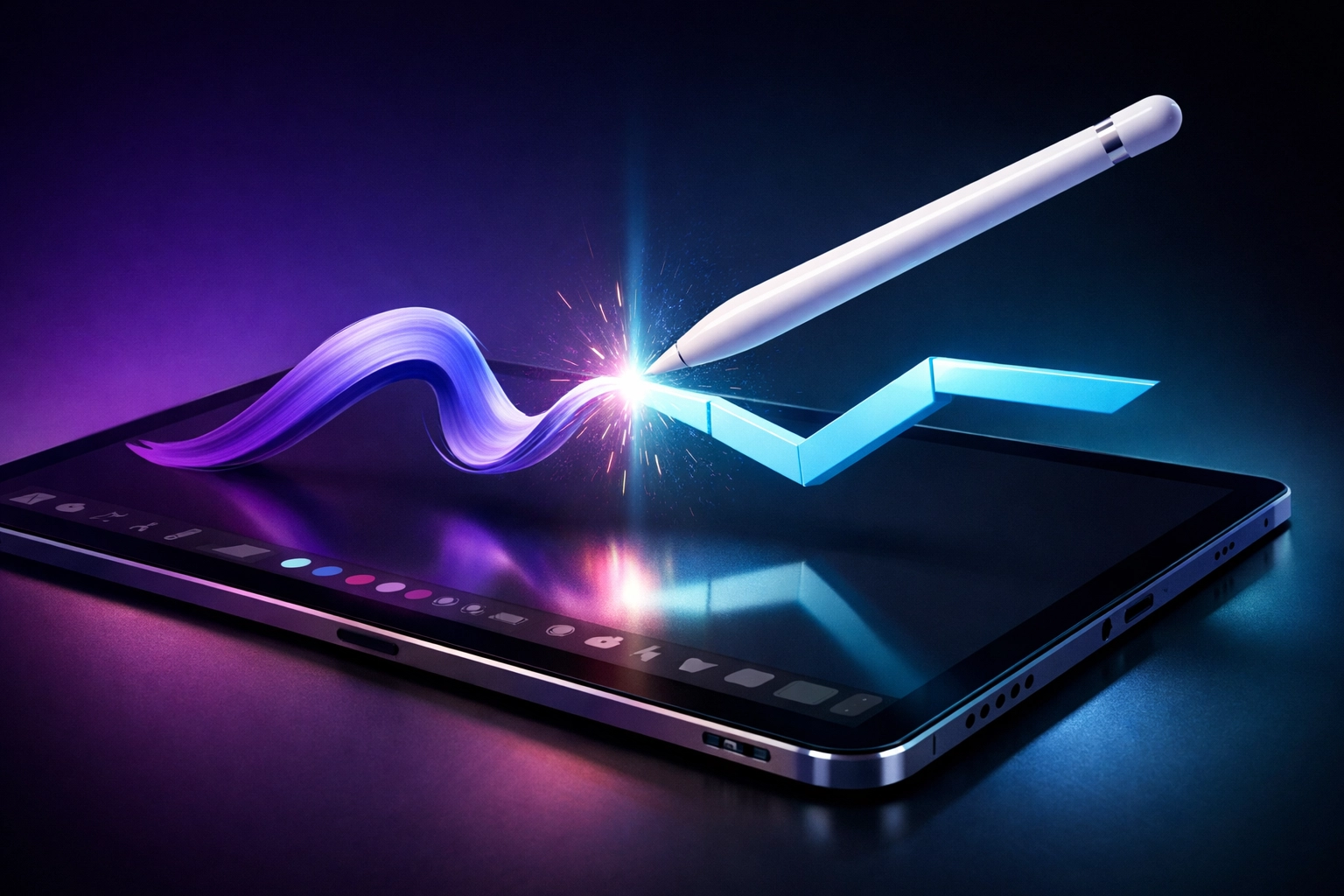
The Problem: You finish a brushstroke and suddenly Procreate transforms your beautiful, organic line into a perfectly straight geometric shape. Frustrating, right?
What's Happening: Procreate includes a helpful feature called QuickShape that detects when you're trying to create geometric forms. When you pause at the end of a stroke with your stylus still touching the screen, Procreate interprets this as an intentional shape creation rather than a finished freehand line.
The Fix: Simply lift your stylus cleanly and decisively when you complete each stroke. Don't linger or hold the stylus down while you evaluate your work. This one habit change will eliminate those unexpected shape conversions and give you complete control over when QuickShape activates versus when it stays dormant.
Mistake #2: Ignoring Dynamic Brush Scaling Settings
The Problem: Your brush appears to change size dramatically when you zoom in and out of your canvas, making it nearly impossible to maintain consistent line weights across your artwork.
What's Happening: Dynamic brush scaling is a setting that keeps your brush size visually consistent regardless of your canvas zoom level. When this feature is disabled, your brush strokes will vary wildly based on your zoom percentage, creating an inconsistent and unprofessional result.
The Fix: Navigate to your wrench menu, select Preferences, and ensure dynamic brush scaling is enabled. This single adjustment transforms your workflow, allowing you to zoom freely without constantly readjusting brush sizes. Your 10-pixel brush will maintain its relative appearance whether you're zoomed out viewing the entire canvas or zoomed in working on fine details.
Mistake #3: Cranking Stabilization Way Too High
The Problem: Your brush feels sluggish, unresponsive, and refuses to capture the natural flow of your hand movements. Every stroke feels like dragging through mud.
What's Happening: Stabilization smooths out minor hand tremors and creates cleaner lines, but excessive stabilization creates significant lag between your stylus movement and the mark appearing on screen. When maxed out, stabilization essentially forces Procreate to predict and average your strokes, eliminating the spontaneous energy that makes digital art feel alive.
The Fix: Tap your current brush, navigate to the stabilization settings, and reduce the value significantly. Start around 20-30% and adjust based on your personal drawing style. If you prefer loose, gestural marks, keep it lower. If you need smoother lines for technical illustration, increase it slightly. Remember: you can always undo a shaky line, but you can't restore the natural movement that over-stabilization removes. If things still feel off, use the "Reset all settings" option to return your brush to its default configuration.
Mistake #4: Overlooking Global Gesture Controls
The Problem: Every single brush in your library suddenly feels sticky, unresponsive, or delayed: not just one problematic brush, but all of them.
What's Happening: When all your brushes behave identically poorly, the issue isn't with individual brush settings but with your global gesture controls. These master settings affect every brush you use, and having multiple smoothing features activated simultaneously creates compounding lag that makes your entire Procreate experience feel broken.
The Fix: Access your wrench icon, select Preferences, then navigate to Pressure and Smoothing. Check whether you've accidentally enabled stabilization, motion filtering, and motion filtering expression all at once. These features stack on top of each other, creating excessive smoothing that chokes your workflow. Disable the ones you don't need, keeping perhaps just one smoothing option active. This immediately restores responsiveness across your entire brush library without touching individual brush settings.
Mistake #5: Misconfiguring Stroke Path Settings
The Problem: Your brush strokes stop prematurely mid-line, as if they're running out of digital "ink" before you finish your intended mark. This creates frustrating gaps in linework and disrupts your creative flow.
What's Happening: The stroke path setting determines how long a brush continues to produce visible marks based on your stylus movement and pressure. When this setting is configured too conservatively, Procreate cuts off your strokes before you're finished, interpreting your continuing movement as complete.
The Fix: Tap your problematic brush and locate the stroke path settings within the brush studio. Increase these values incrementally, testing after each adjustment until your strokes flow naturally from start to finish without premature cutoffs. Different brush types require different stroke path configurations, so don't be afraid to customize this setting for each brush in your workflow rather than using universal values.
Mistake #6: Not Calibrating Your Pressure Curve
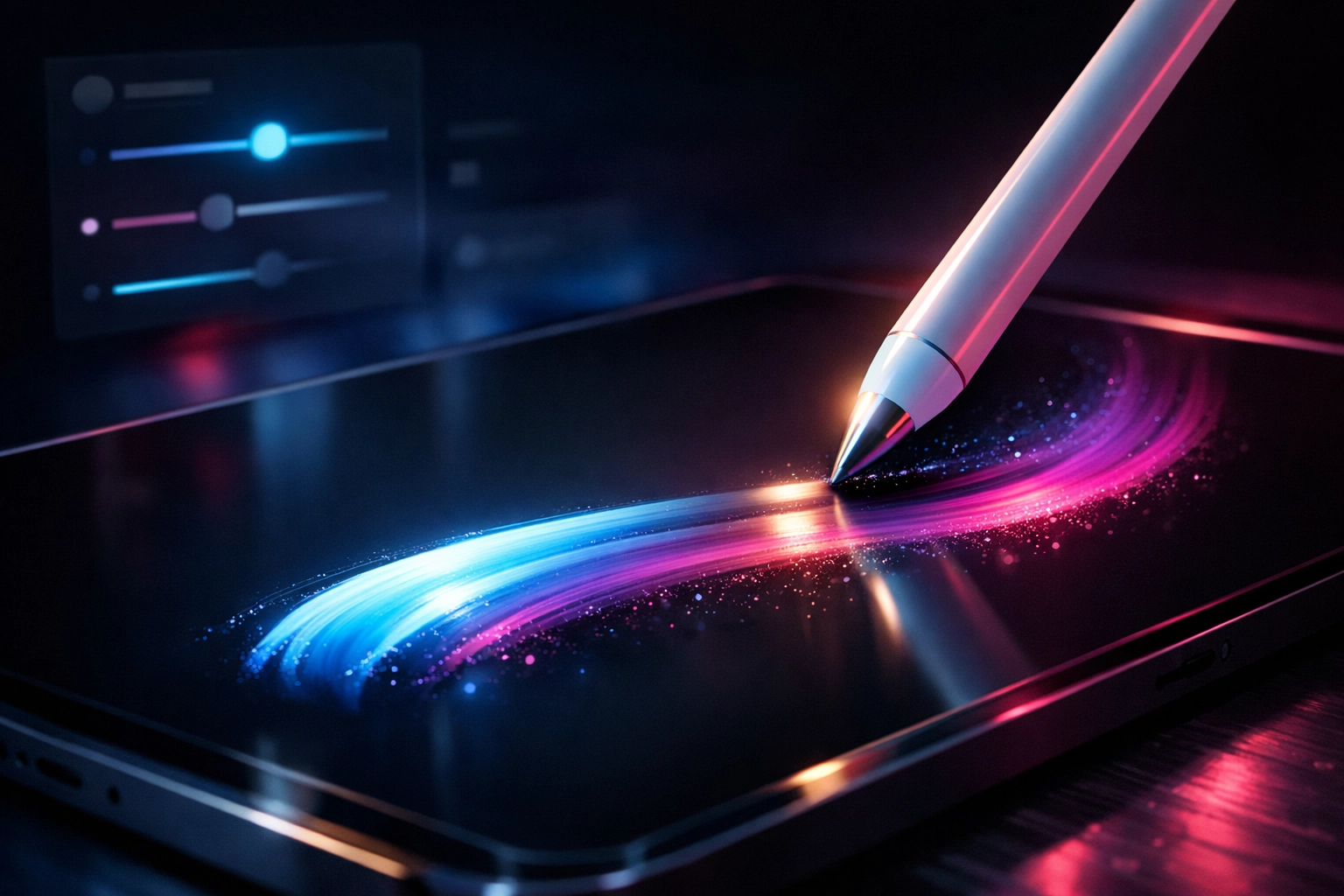
The Problem: You vary your pressure significantly while drawing, but your lines remain stubbornly uniform in thickness. No matter how hard or soft you press, the results look identical.
What's Happening: Pressure sensitivity relies on two components working together: your stylus hardware and Procreate's pressure curve settings. The pressure curve translates physical pressure into digital line variation. If this curve is configured incorrectly: or if you're using default settings that don't match your natural drawing pressure: you won't see the dynamic line weight variations that make digital art feel hand-drawn and authentic.
The Fix: First, access your pressure curve settings and experiment with the curve adjustment. A steeper curve requires less pressure variation to produce dramatic thickness changes, while a flatter curve requires more pressure range for subtle variations. Adjust this based on your natural drawing style. However, if you've adjusted the curve extensively and still see zero pressure response, your stylus itself may be malfunctioning. Apple Pencils occasionally lose pressure sensitivity calibration or develop hardware issues that require replacement.
Mistake #7: Drawing with Jittery, Unsmoothed Strokes
The Problem: Your lines appear shaky and unstable, especially when drawing slowly or attempting precise ink work. What should be smooth, confident strokes instead look like you drew them during an earthquake.
What's Happening: Natural hand tremors become magnified when working digitally, particularly during slow, deliberate strokes where you're exercising maximum control. Everyone experiences this to varying degrees: it's not a skill issue but a natural human characteristic that becomes visible at digital magnification levels.
The Fix: Utilize Streamline settings specifically designed to combat jitter without creating the overwhelming lag that excessive stabilization produces. Streamline intelligently smooths your lines while maintaining responsiveness. This feature proves particularly valuable for inking brushes and technical illustration work. Be aware that very short strokes may feel slightly delayed with Streamline active, so adjust the setting based on your current project requirements. Test it at different values until you find the sweet spot where your strokes feel both smooth and responsive.
Elevate Your Procreate Workflow
Mastering these technical settings transforms your relationship with Procreate brushes from frustrating guesswork to confident control. But the right settings only matter when paired with high-quality brushes designed by professionals who understand these nuances.
The graphic design bundle at Design Vault includes carefully optimized Procreate resources that work seamlessly right out of the box, saving you hours of technical troubleshooting. When you invest in professionally crafted digital assets, you're not just buying files: you're buying time to focus on what actually matters: creating exceptional art.
Understanding your tools empowers you to work faster, iterate confidently, and produce professional-quality results regardless of your experience level. These seven fixes eliminate the technical barriers standing between your creative vision and the finished artwork you imagine. Now get back to creating( your perfectly configured brushes are waiting.)