
Your iPad sits in front of you, Apple Pencil in hand, and Procreate is open. The blank canvas feels both exciting and overwhelming. You know the app is powerful: you've seen the stunning artwork people create with it: but where do you even begin? The answer is simpler than you might think: it all starts with the right procreate brushes bundle.
Brushes are the foundation of everything you create in Procreate. They determine how your strokes look, feel, and behave. And while the default brushes are decent, unlocking a curated bundle of professional-quality brushes can transform your digital art journey from frustrating to flourishing.
Let's break it all down.
What Exactly Are Procreate Brushes?
Think of Procreate brushes as your digital art supplies. Just like traditional artists have pencils, charcoal, watercolors, and oils, digital artists have brushes that mimic these textures and effects: plus countless others that only exist in the digital realm.
Each brush in Procreate consists of two core elements:
- Shape: The main structure that defines your stroke's silhouette
- Grain: A texture layer that adds depth and character to your marks
When you combine these elements with settings like pressure sensitivity, stroke path behavior, and stabilization, you get brushes that can replicate everything from delicate ink lines to bold acrylic strokes. The possibilities are genuinely endless.
Why a Procreate Brushes Bundle Changes Everything
Here's the thing about default brushes: they're designed to be generic. They work for everyone, which means they're not optimized for anyone specific. When you invest in a procreate brushes bundle, you're getting tools crafted by experienced artists who understand what creators actually need.
A quality bundle typically includes:
- Variety: Dozens of brushes covering multiple styles and mediums
- Cohesion: Brushes designed to work beautifully together
- Specialization: Tools optimized for specific techniques like lettering, illustration, or texture work
- Time savings: No more tweaking settings for hours trying to get the right effect
Imagine having instant access to the perfect watercolor wash, a crisp inking brush, soft blending tools, and unique texture stamps: all in one organized collection. That's the power of a well-curated bundle.
Getting Started: Navigating Your Brush Library
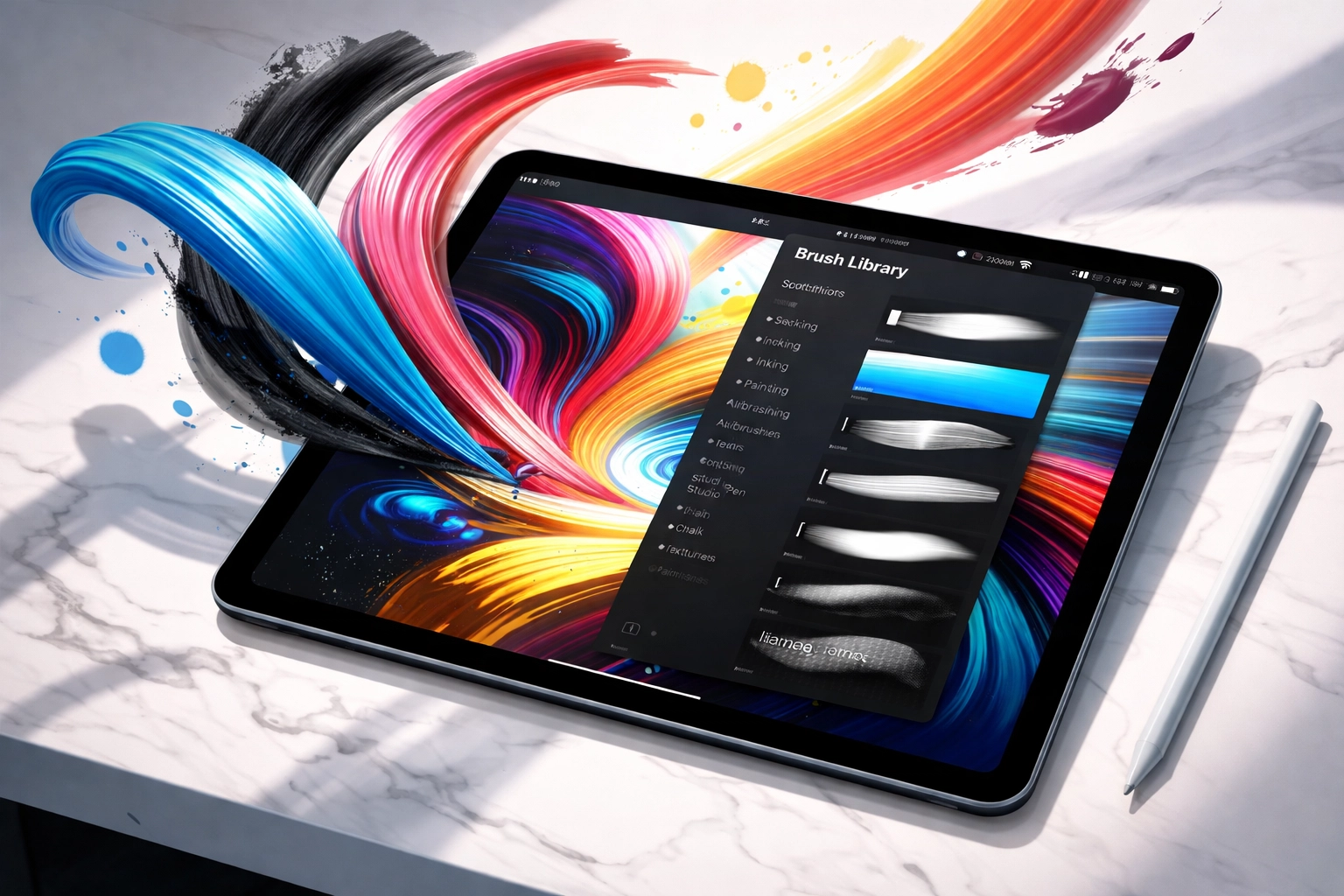
Before you dive into new brushes, you need to understand how Procreate organizes them. Your brush library is your central hub for accessing and managing every drawing tool at your disposal.
To open it, simply tap twice on the Paint, Smudge, or Erase tool at the top of your screen. You'll see two panels appear:
- Left panel: Your brush sets, sorted by medium and style
- Right panel: Individual brushes within the selected set, complete with name and stroke preview
Procreate also tracks your recently used brushes automatically. Tap "Recent" to access up to eight brushes you've used lately: a small feature that saves massive time when you're in the creative flow.
Importing Your First Brush Bundle
So you've downloaded a procreate brushes bundle: now what? Getting those brushes into the app is refreshingly simple.
Locate your downloaded files on your iPad. They'll typically come in one of three formats:
- .brush – A single brush file
- .brushset – A collection of brushes grouped together
- .brushlibrary – A larger library containing multiple sets
Tap on any of these files, and Procreate does the rest. Single brushes land in an "Imported" set, while brush sets appear at the top of your library, ready to use immediately. No complicated installation process. No technical headaches.
Organizing Your Brushes Like a Pro
As your collection grows, organization becomes paramount. A cluttered brush library slows you down and kills creative momentum. Here's how to keep things tidy.
Create custom sets by tapping the plus button at the top right of your brush library and selecting "Create new set." Name it something intuitive: "Inking Favorites," "Texture Pack," or "Portrait Work," for example.
To move brushes between sets, simply drag and hold the brush, then drop it into your desired set. You can also reorder brushes within a set to put your most-used tools at the top.
This simple habit transforms your workflow. Instead of scrolling through hundreds of brushes hunting for the right one, you'll know exactly where everything lives.
Essential Tips for Beginners
Now that your brushes are imported and organized, let's talk technique. These tips will help you get the most out of your new tools.
Master the sliders. On the left side of your canvas, you'll find two sliders controlling brush size and opacity. Tap and drag to adjust them on the fly. Learning to manipulate these quickly while working is an underrated skill that dramatically improves your art.
Use stabilization wisely. Many brushes include stabilization settings that smooth your strokes for cleaner lines. This is indispensable for lettering and linework but can feel sluggish for loose sketching. Experiment to find your sweet spot.
Understand pressure sensitivity. Your Apple Pencil detects how hard you press, and brushes respond accordingly. Light pressure might give you thin, faded lines while heavy pressure produces bold, saturated strokes. Spend time getting comfortable with this: it's what makes digital art feel natural.
Don't ignore the Smudge tool. Brushes aren't just for painting. Assign your favorite brushes to the Smudge tool for blending that matches your stroke style. This creates cohesion across your entire piece.
Taking It Further: Creating Custom Brushes
Once you're comfortable using brushes, you might want to create your own. Procreate makes this surprisingly accessible.
The easiest approach is to start with an existing brush as your foundation. Duplicate a brush you like, then tap it to enter the Brush Studio. From here, you can tweak:
- Shape and grain sources
- Stroke path settings like spacing and jitter
- Pressure curves and tilt response
- Color dynamics and wet mix effects
You don't need to master every setting right away. Small adjustments to existing brushes can yield tools that feel uniquely yours: perfectly suited to your style and workflow.
Building Your Digital Art Toolkit
Your brushes are just one piece of the puzzle. The most successful digital artists build comprehensive toolkits that include complementary assets.
Consider pairing your procreate brushes bundle with:
- Texture packs for adding depth and interest to backgrounds
- Color palettes that ensure cohesive, professional-looking artwork
- Stamps and shapes for quick decorative elements
At Design Vault, you'll find a curated selection of digital assets designed to elevate your creative work. From graphic design bundles to stunning artworks, there's something for every style and skill level.
Your Journey Starts Now
Digital art mastery doesn't happen overnight, but having the right tools accelerates your progress dramatically. A quality procreate brushes bundle removes technical barriers and lets you focus on what actually matters: developing your unique artistic voice.
Start by exploring what's available, import a bundle that excites you, and organize your library with intention. Practice with pressure sensitivity. Experiment with different brush styles. And most importantly, create something every single day.
The artists you admire started exactly where you are now. They just kept showing up, kept experimenting, and kept pushing their skills forward. With the right brushes in your toolkit and a commitment to growth, you'll be amazed at what you can create.
Ready to level up your Procreate game? Visit Design Vault to explore professional-quality digital assets that empower your creative vision. Your next masterpiece is waiting.